Contents
The two numbers that matter
Ignore the moment-to-moment battery percentage - that's just today's charge. Long-term health comes down to two figures:
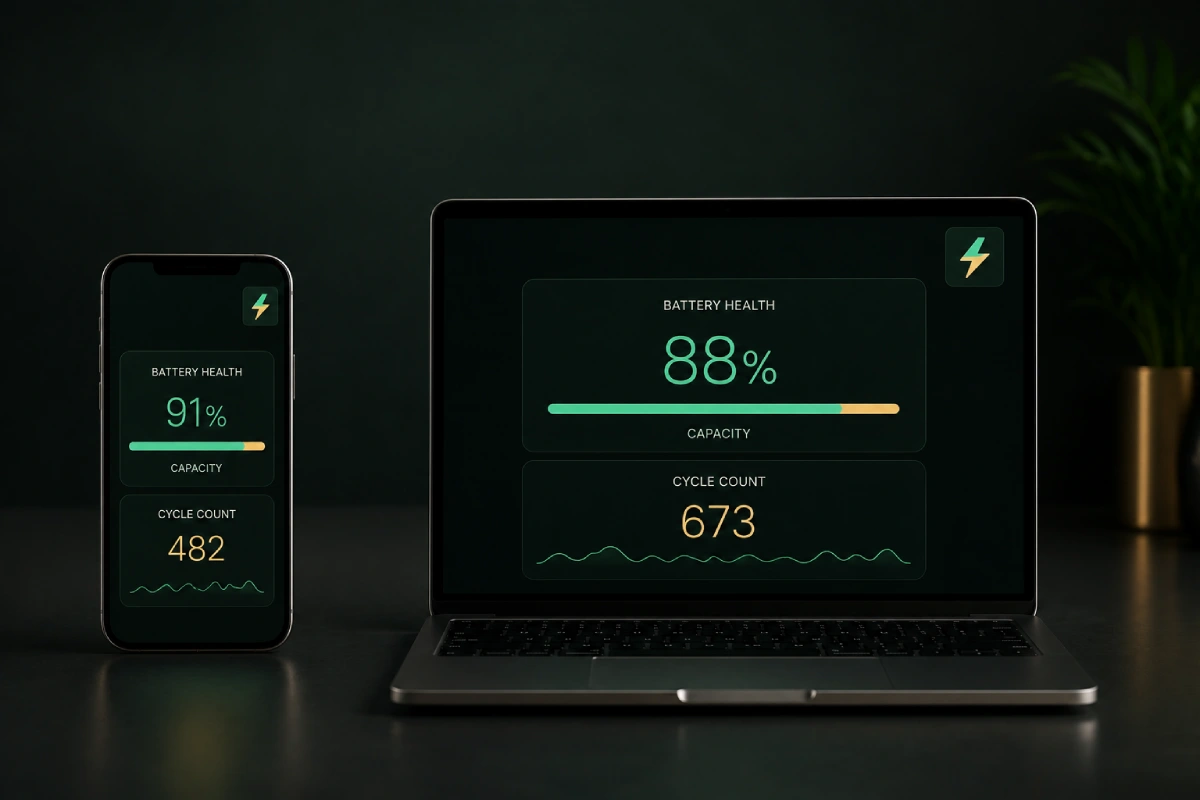
- Maximum capacity (battery health %). How much charge the battery holds now versus when it was new. A brand-new battery is 100%; as it ages it slips - 90%, 85%, and so on. This is the headline health number.
- Cycle count. How many full charge cycles the battery has been through. Importantly, one cycle is a full battery's worth of energy, not one plug-in - charging from 50% to 100% twice counts as one cycle. It's the odometer for your battery.
iPhone & iPad
On iPhone, go to Settings → Battery → Battery Health & Charging. You'll see Maximum Capacity as a percentage, plus a message about peak performance capability. On iPhone 15 and newer, the same screen (or Settings → General → About) also shows an exact Cycle Count, along with the battery's manufacture and first-use dates.
Most iPads don't surface a maximum-capacity figure in Settings the way iPhones do; you can read an iPad's (or older iPhone's) cycle count by connecting it to a computer and viewing the device's analytics/power data.
Android
Android is the inconsistent one, because it's many makers. In rough order of ease:
- Check Settings first. Newer phones increasingly expose a health figure - look under Settings → Battery, Battery and device care, or a Battery health / Battery information sub-page. Google's recent Pixels and some Samsung models now show a capacity or health readout here.
- Manufacturer diagnostics. Samsung's Members app (Diagnostics → Battery) reports battery status, for example.
- A reputable third-party app. If your phone hides it, an app like AccuBattery estimates real capacity by measuring charges over a week or two. (It needs some time to gather data - a single reading isn't meaningful.)
Windows laptop
Windows hides a genuinely useful battery report behind a command:
- Open Terminal or Command Prompt.
- Type
powercfg /batteryreportand press Enter. - It saves an HTML file (it tells you the path, usually your user folder). Open that file in a browser.
The report shows Design Capacity vs Full Charge Capacity - compare the two to see how much the battery has faded - plus Cycle Count (when the maker reports it) and a battery-life-estimates history. It's the clearest picture Windows gives, and it's free and built in.
Mac
On macOS, go to System Settings → Battery, then click the ⓘ next to Battery Health to see condition and Maximum Capacity. For the exact cycle count, hold Option and click the Apple menu → System Information → Power, and look under Battery Information. macOS also labels overall condition as Normal or a "Service Recommended"-style warning.
What the numbers actually mean
Maximum capacity: think of 80% as the widely used line between "healthy" and "worn." A battery at 92% is barely down from new; at 80% you'll notice shorter runtime but it's still usable; below 80% the drop-off becomes obvious. Manufacturers often design batteries to still hold about 80% after their rated cycle life - so hitting 80% isn't a failure, it's the expected end of the "like new" phase.
Cycle count: most modern phone batteries are rated to keep around 80% capacity after roughly 500-1,000 cycles; many laptops are rated near 1,000. A three-year-old phone at 600 cycles and 84% capacity is behaving exactly as designed. A one-year-old phone already at 80% suggests it's been living hot or fast-charged hard - the stressors covered in what ages a battery.
When is it time to replace?
There's no hard rule, but reasonable triggers:
- Capacity below ~80% and the shorter runtime is bothering you day to day.
- An OS "Service" or degraded-battery warning (iPhone peak-performance message, Mac "Service Recommended," a Windows report showing full-charge capacity far below design).
- Unexpected shutdowns at 20-40%, or the device only running well while plugged in.
- Any physical warning sign - a swollen battery, a bulging case or trackpad, or a device that gets hot at rest. That's a stop-now, covered in Safety below.
Before replacing, it's worth adopting the habits that slow further wear on the new battery - otherwise you'll be back here in a year. That's the whole point of the charging guide.
⚡ Make the next battery last longer
Charge limits, heat, and the 20-80 habit - the settings and routines that keep a battery healthy for years.
Read: How to Charge Your Devices →Bottom line: your device already tracks its own battery wear - you just have to know where to look. Read maximum capacity and cycle count together, judge them against the battery's age and rated cycle life, and you'll know whether it's fine, fading normally, or genuinely due for replacement. Numbers beat guesswork every time.
FAQ
What is a good battery health percentage?
Maximum capacity is measured against the battery when new, so 100% is a fresh battery. Anything above roughly 80% is generally considered healthy. Batteries are often deemed "worn" around the 80% mark, which many are designed to still reach after several hundred charge cycles. Below 80%, you'll notice shorter runtime and may want to consider a replacement.
What is a normal battery cycle count?
One cycle equals a full charge's worth of use, not one plug-in. Modern phone batteries are typically rated to retain about 80% capacity after 500 to 1,000 cycles, and many laptops are rated for around 1,000 cycles. A cycle count well within that range with healthy capacity means the battery is fine.
Does Android show battery health like iPhone?
It varies. Some newer Android phones now show a battery health or capacity figure in Settings under Battery or Device care, but many still don't expose it directly. On those, a reputable third-party app such as AccuBattery can estimate health over time, or you can check cycle count where the manufacturer provides it.
Menu paths, feature names, and rated cycle life vary by device, model year, and OS version - treat the steps here as a starting point and follow your manufacturer's current documentation. Third-party apps are mentioned as options, not endorsements. VoltRated is independent and curation-based; we don't run our own lab tests.